Task Execution
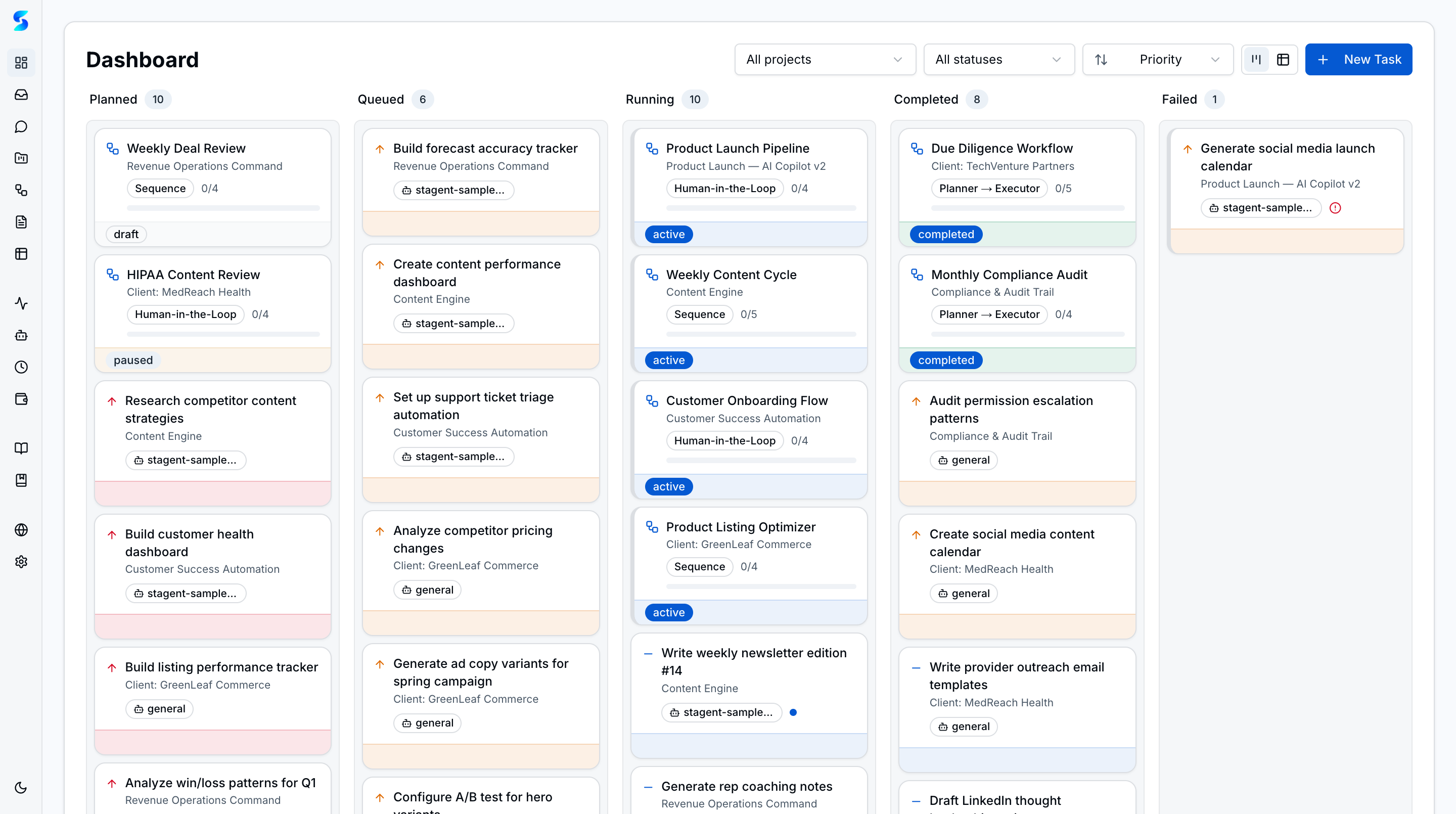
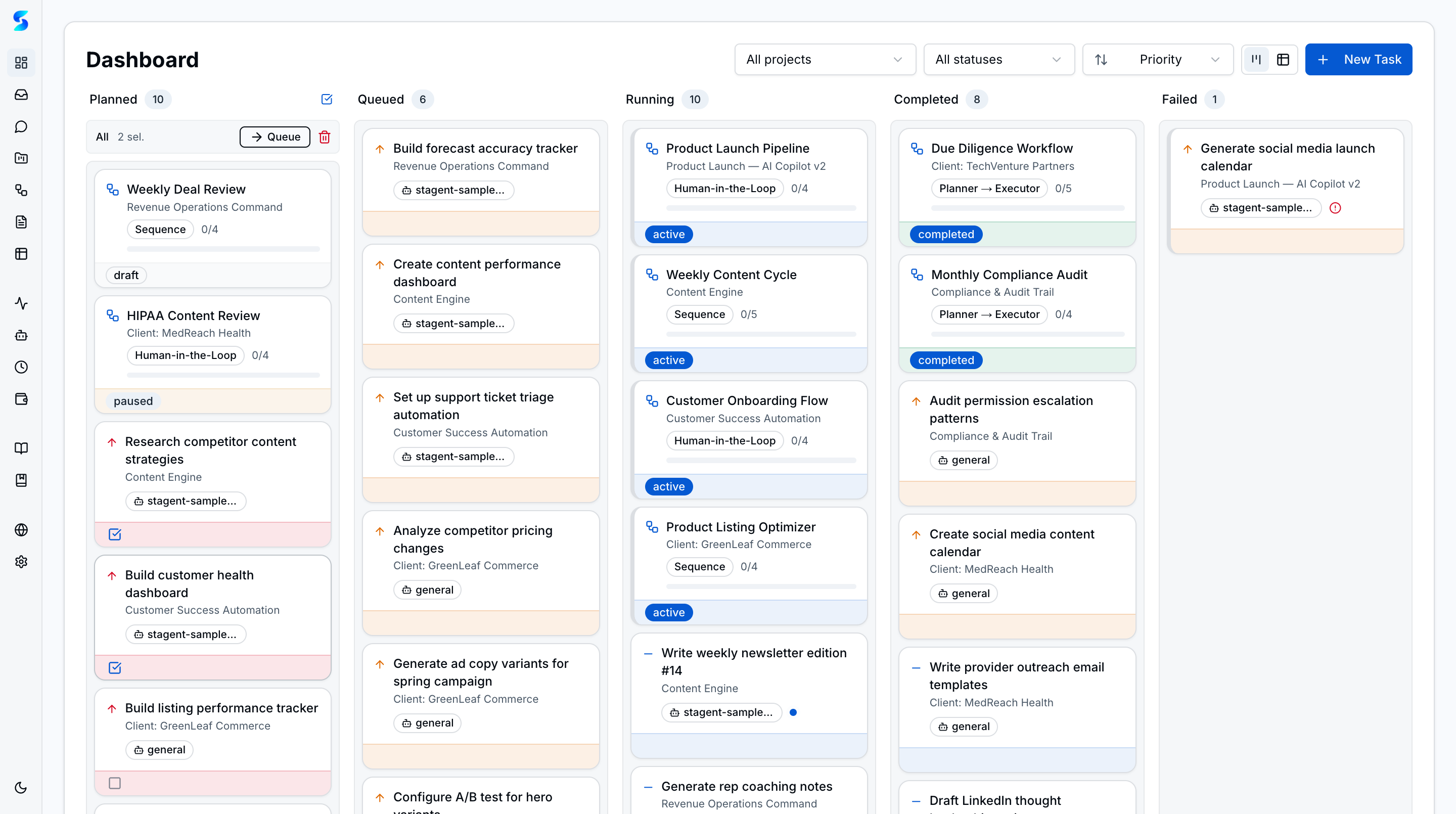
Tasks are the unit of execution inside Stagent. They move through explicit lifecycle states and stay visible from the dashboard, project detail views, workflow steps, and related documents.
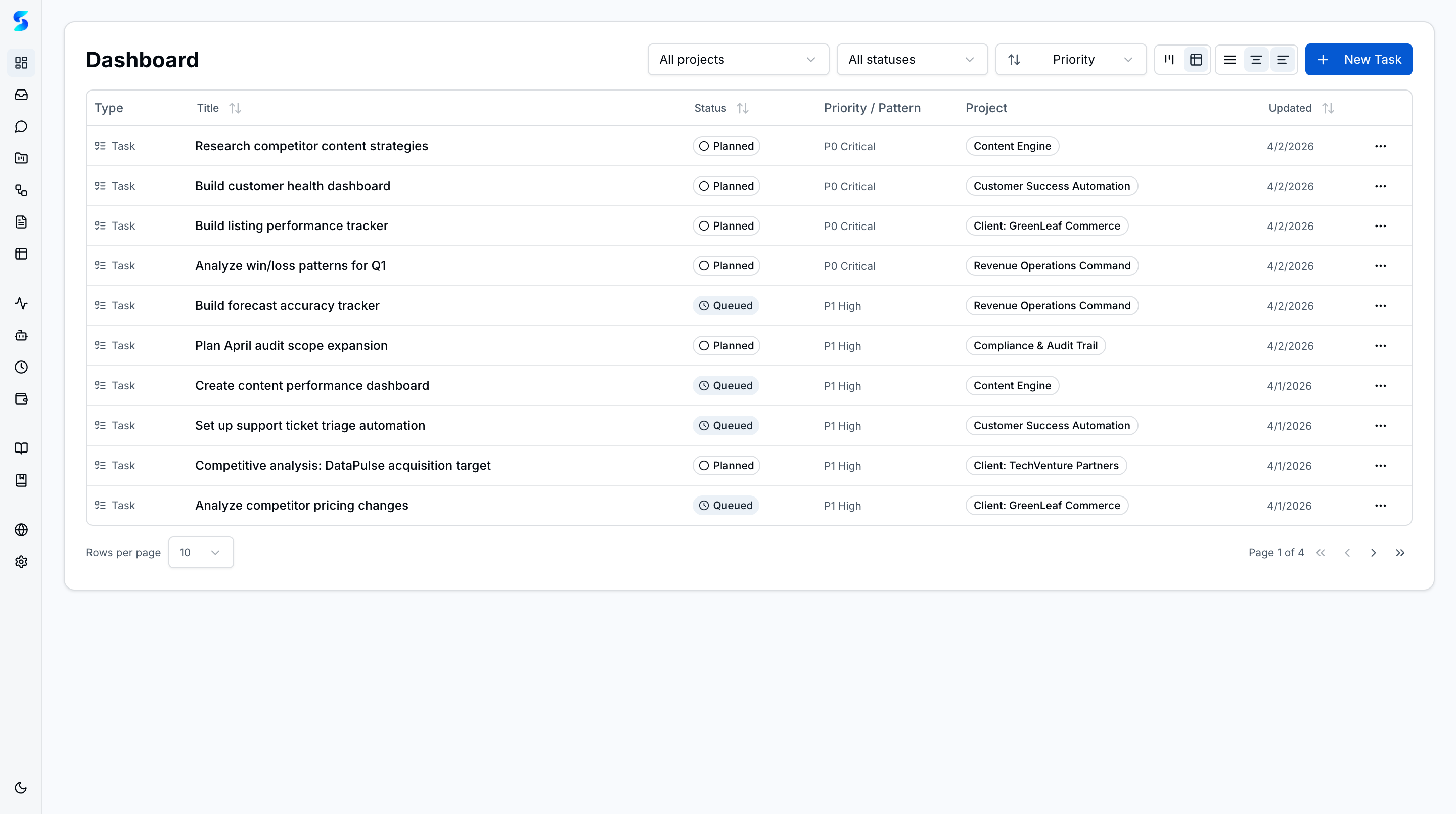
Tasks can also be viewed as a sortable table with columns for status, priority, project, profile, and actions — useful when you need to scan or filter a long task list quickly.
Key Concepts
- Lifecycle Lanes — Planned, queued, running, completed, and failed states make task progress obvious at a glance.
- Project Context — Every task remains tied to a project so work can be filtered globally or reviewed in a project-specific queue.
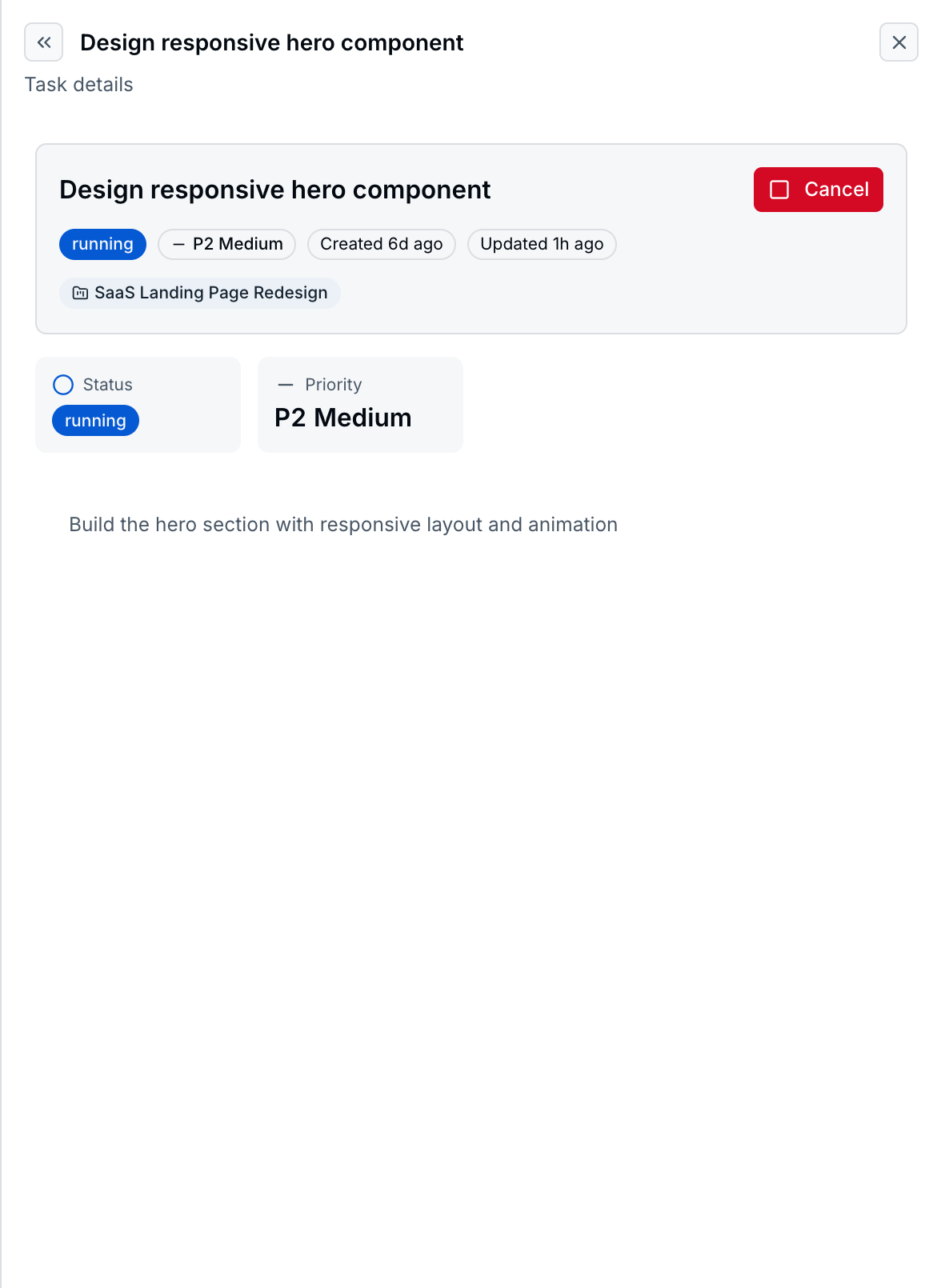
- Task Detail — The detail view keeps priority, status, timestamps, and the task description together for review and intervention.
- Task Creation — New tasks can be created directly from the dashboard with project, priority, and complexity fields filled in up front.
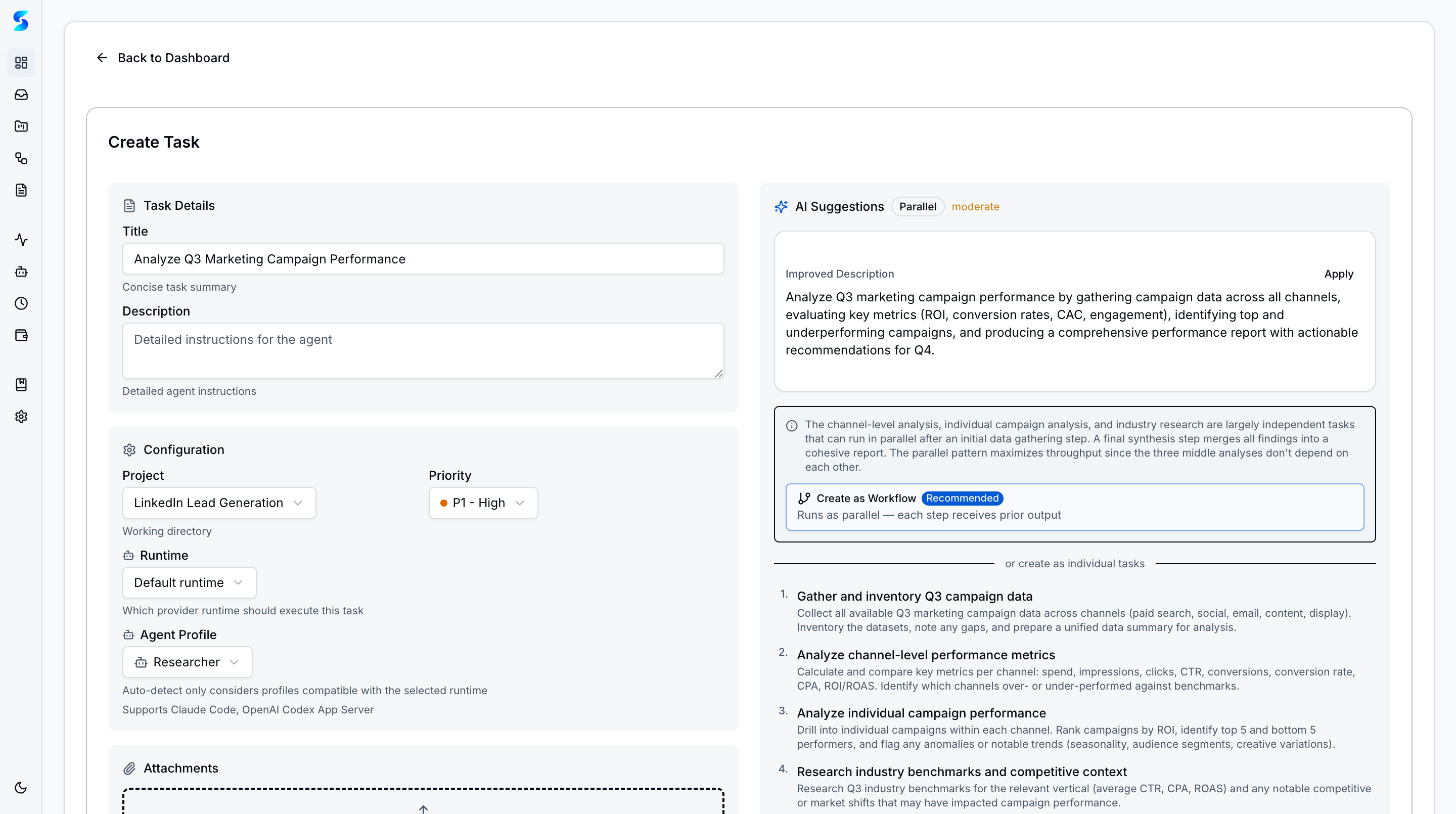
- AI Assist — The creation form generates sub-task suggestions from a brief, letting operators bootstrap detailed task descriptions with AI support. Multi-step recommendations can be promoted to governed workflows in one click.
- Bento Grid Detail View — The task detail uses a bento grid layout with a chip bar and prose reader, keeping priority, status, timestamps, and description together.
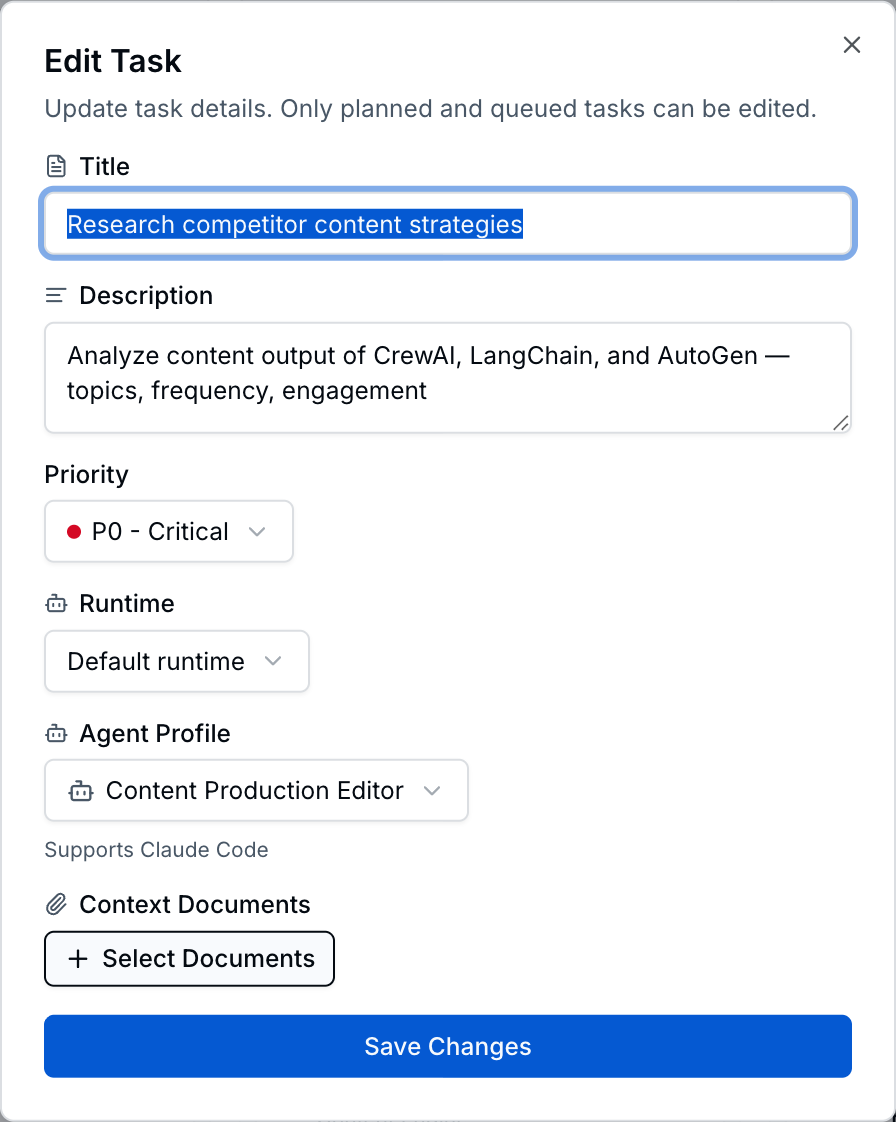
- Inline Editing — Tasks can be edited directly from the board without navigating away from the execution view.
- Bulk Operations — Multi-select tasks across columns with a floating action bar for move, delete, or reassign actions.
Task Lifecycle
| Status | Description |
|---|---|
| Planned | Task defined but not yet queued for execution |
| Queued | Ready for agent pickup |
| Running | Agent actively executing the task |
| Completed | Successfully finished |
| Failed | Agent encountered an error |
| Cancelled | Manually stopped by the user |
How It Works
Operators typically create tasks from the dashboard or from within a project. Once a task is queued, Stagent hands it to the execution layer, which applies the configured agent profile, logs runtime events, and surfaces permission requests when the agent needs approval.
The task detail view is the control surface for one execution record. It is where you verify the task definition, confirm current state, and intervene when a run should be canceled or retried.
AI-Assisted Task Creation
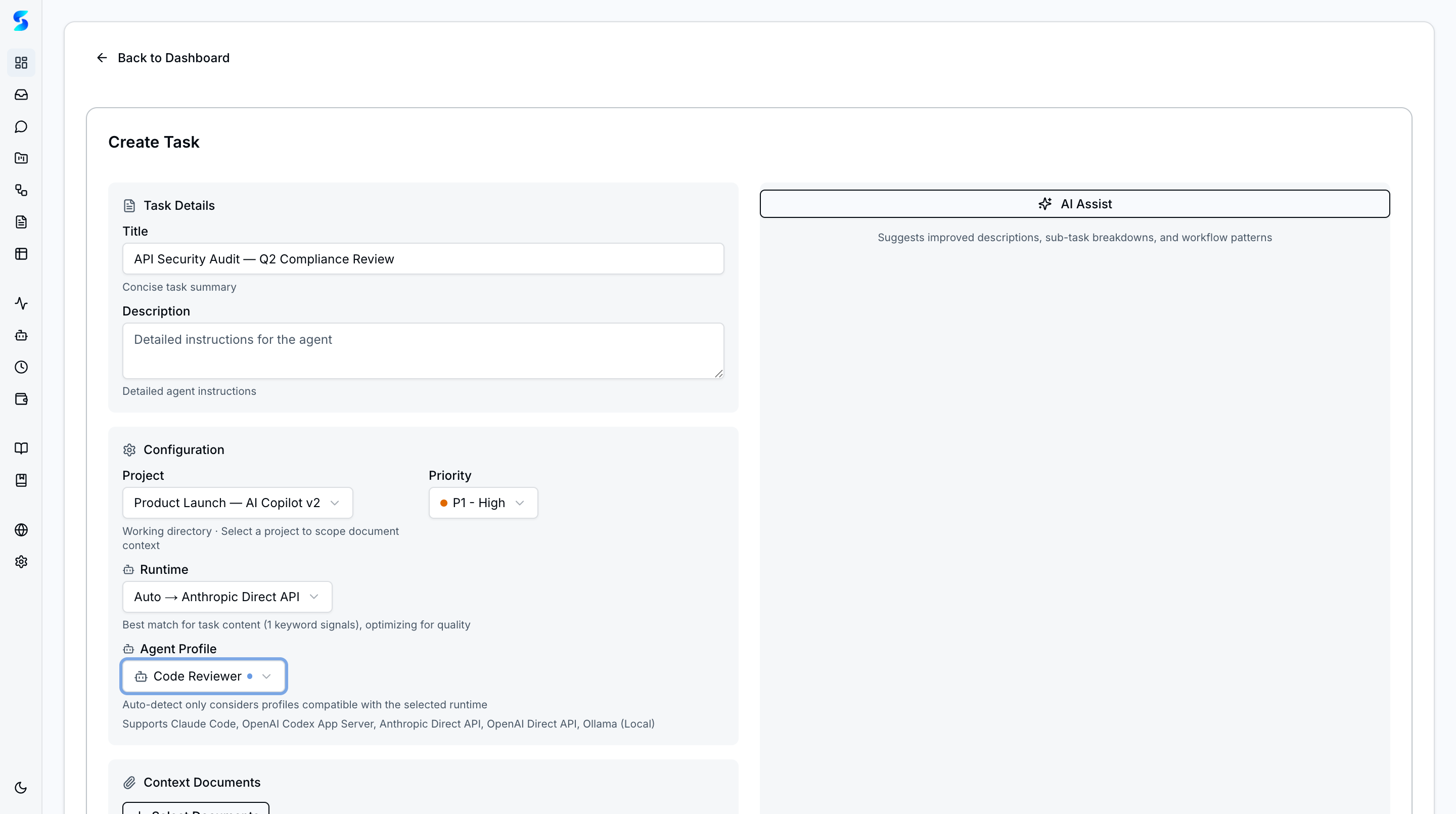
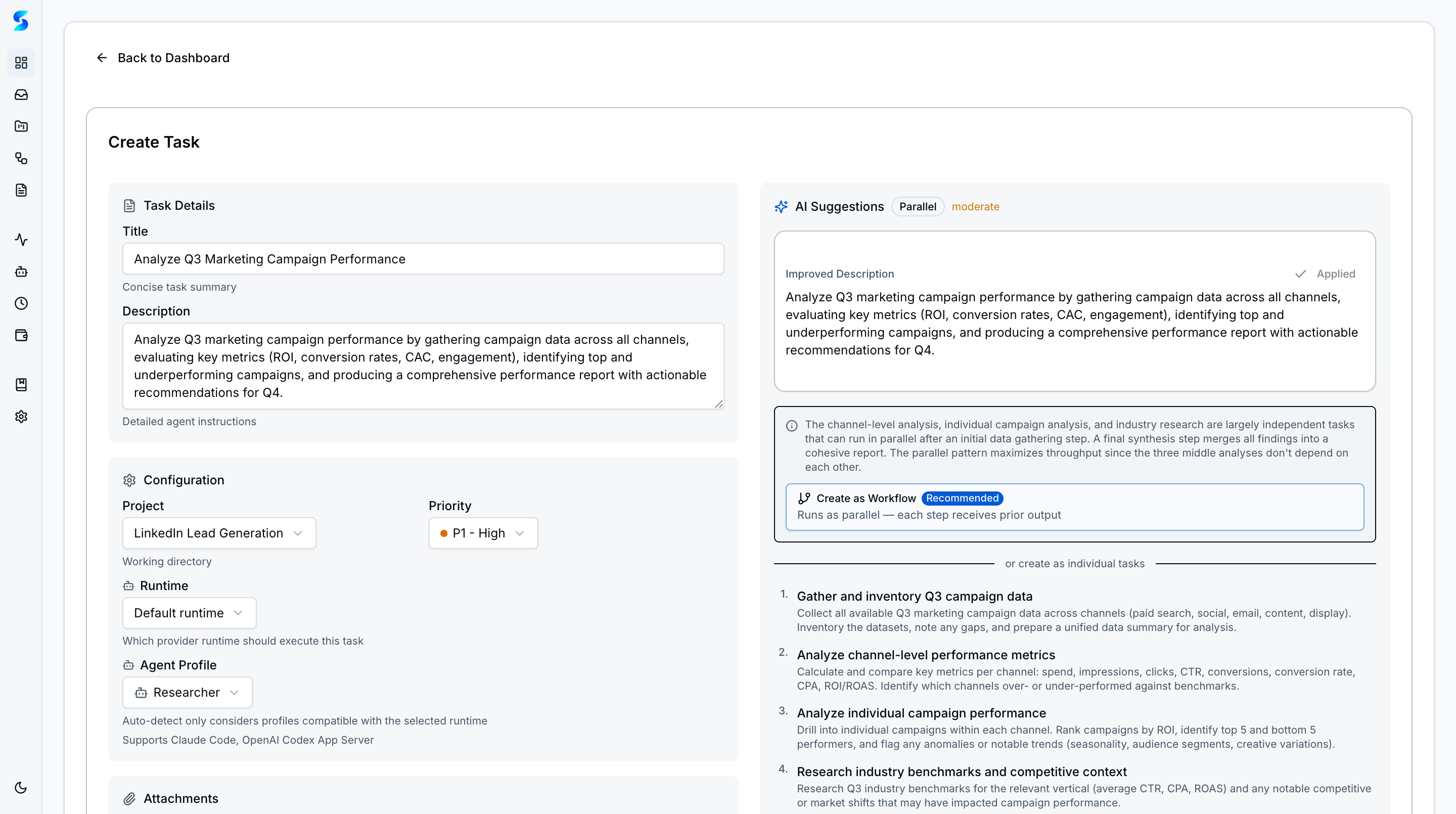
The task creation form includes an AI Assist panel that analyzes the task brief and suggests sub-task breakdowns, description refinements, or workflow patterns. Operators review the suggestions, accept or dismiss them, and submit the final task. This keeps human judgment in the loop while reducing the effort of writing detailed execution briefs from scratch.
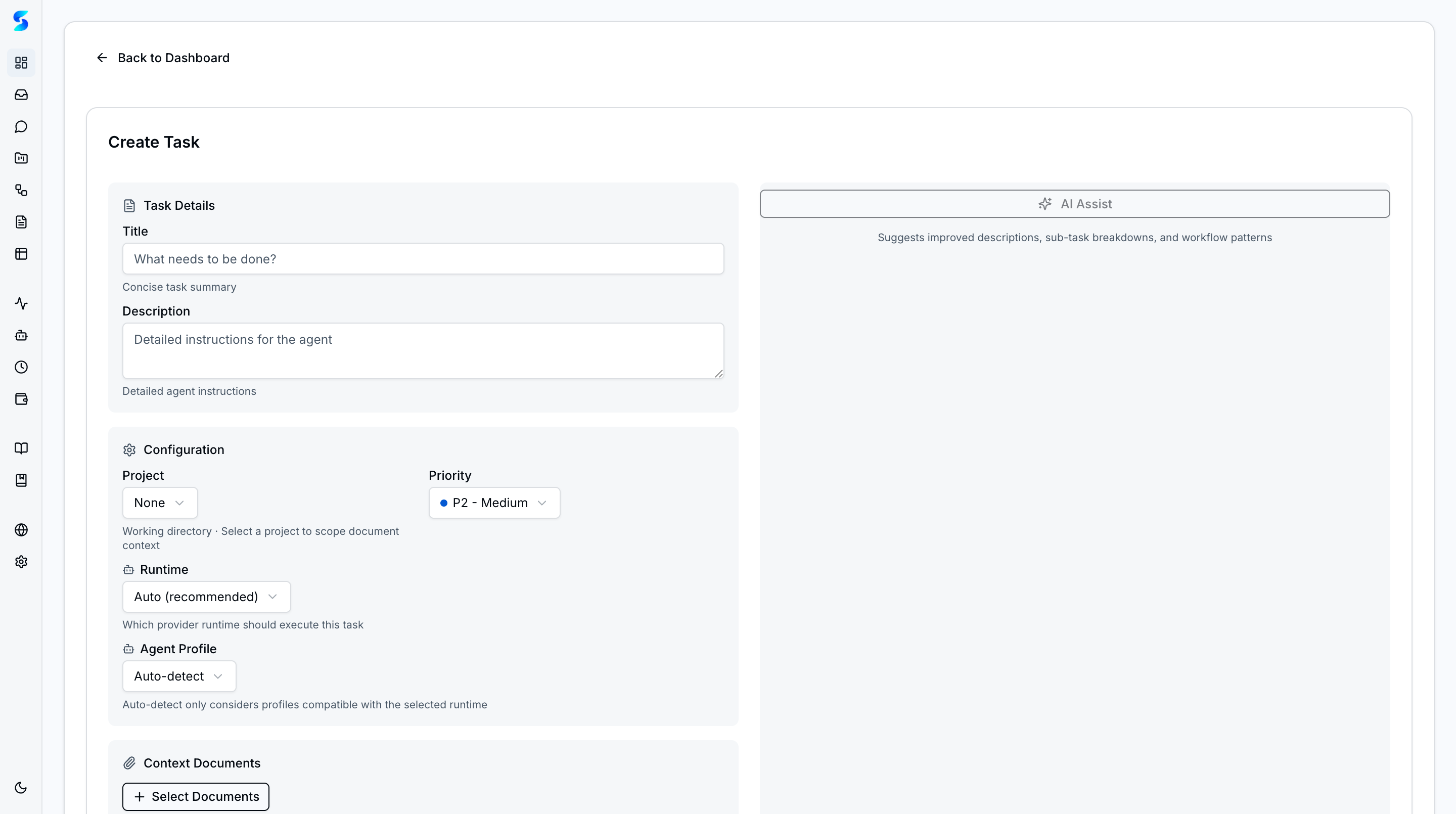
Once a title and description are entered, the AI Assist panel analyzes the brief and generates sub-task suggestions, description refinements, and workflow pattern recommendations in the right panel.
Clicking Apply writes the AI-generated content back into the form’s description field, giving the operator a polished starting point they can refine before submitting.
Editing & Bulk Operations
Tasks can be edited inline from the dashboard using the card edit modal. The modal exposes title, description, priority, runtime, and agent profile fields. Operators can also work with multiple tasks across status columns from the board view.
The board view also supports working with multiple tasks at once. Selecting tasks across columns lets operators apply bulk actions — reassigning priorities, moving work between states, or clearing completed items — without opening each card individually.
Use Cases
Code Review Pipeline
Product Team · Processing a backlog of pull requests
Twelve PRs landed overnight. You create review tasks, filter the dashboard to the engineering project, and move work from planned to queued as the day opens. The board becomes the operating queue for the entire review pass.
Research Decomposition
Knowledge Worker · Breaking down a complex analysis
You create a task for a competitive landscape analysis, set its project and priority, then let the assigned workflow or profile handle execution. The task record keeps the work grounded in one explicit brief rather than an unstructured chat thread.
Daily Task Automation
Power User · Recurring maintenance tasks every morning
Recurring schedules generate new tasks for the same set of morning checks. When you open the dashboard, the queued lane already contains the runs you need to review or start for the day.
Delegating Without Technical Knowledge
Non-Technical User · Turning raw data into insights
You create a task against the right project, attach source documents, and let a specialized profile execute the work. The task remains a clear operational record that you can inspect later in the dashboard, project detail, or monitor.
Related Features
- Agent Integration — How agents execute tasks
- Human-in-the-Loop — Permission requests during execution
- Workflows — Chaining tasks into multi-step workflows