Schedules
Schedules turn repeatable prompts into recurring or one-shot automations with two distinct modes. Clock-driven schedules fire on a fixed cadence, while heartbeat schedules evaluate a checklist of conditions before acting — suppressing no-op runs and only creating tasks when meaningful work is needed. Both modes support natural language intervals, delivery channel notifications, and full execution history.
Key Concepts
- Two Schedule Types — Clock-driven schedules fire on a fixed interval (ideal for reports and data refreshes). Heartbeat schedules evaluate a checklist of conditions before acting, suppressing runs when nothing needs attention.
- Natural Language Intervals — Define cadence with plain English like “every 30 minutes,” “daily at 9am,” “every Monday at 10am,” or “weekdays at 5pm.” A preview shows the parsed interpretation before you save.
- Heartbeat Checklists — Editable condition lists that the agent evaluates on each firing. Suppression counts track how often the schedule skipped work because no conditions were met.
- Active Hours Windowing — Restrict firings to specific time windows (e.g., business hours only) so schedules respect your operating rhythm.
- Cost Controls — Per-firing cost budgets flag excessive runs in the firing history, keeping scheduled automation within predictable spend.
- Delivery Channel Integration — Attach Slack, Telegram, or webhook channels so schedule results are pushed to external messaging services alongside the in-app notification.
- Runtime Targeting — Choose Claude or OpenAI per schedule to control which runtime executes recurring work.
- Profile Selection — A schedule can choose which agent profile should execute the recurring work.
- Governed Execution — Each firing creates a new task that flows through the full execution pipeline with monitoring, approvals, and logging — scheduled work is never a black box.
- Guardrails — Max firings and expiry windows stop a schedule from running forever by accident.
- Firing History — Every firing creates a tracked child task visible in the detail view, enabling audit trails and pattern spotting across runs. Suppressed firings are recorded separately.
- Pause and Resume — Suspend a schedule without losing configuration or firing history; resuming picks up where it left off.
How It Works
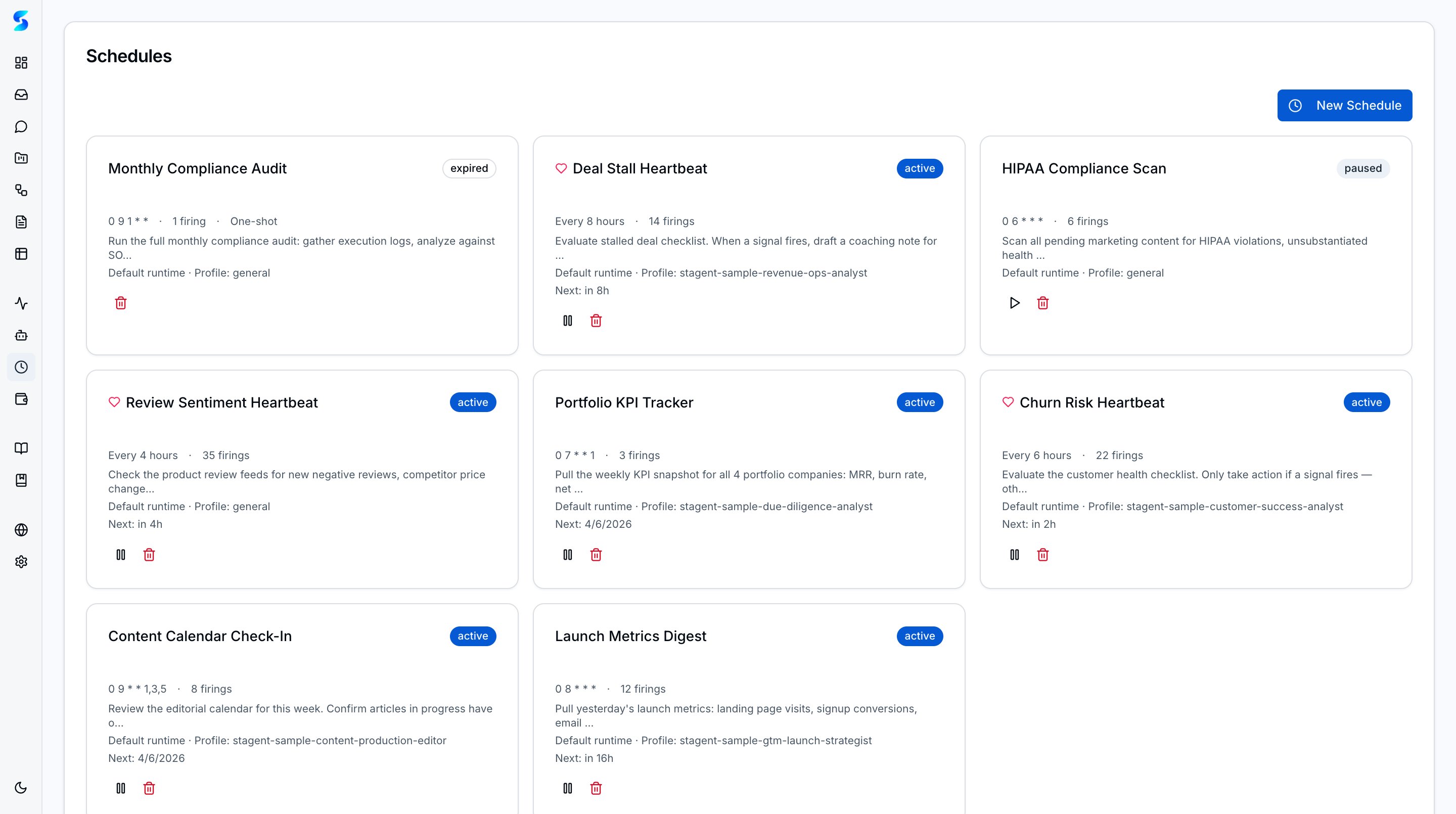
The list view is the automation roster. It shows cadence, firing count, and lifecycle state so operators can quickly see what is still running and what has already expired or been paused.
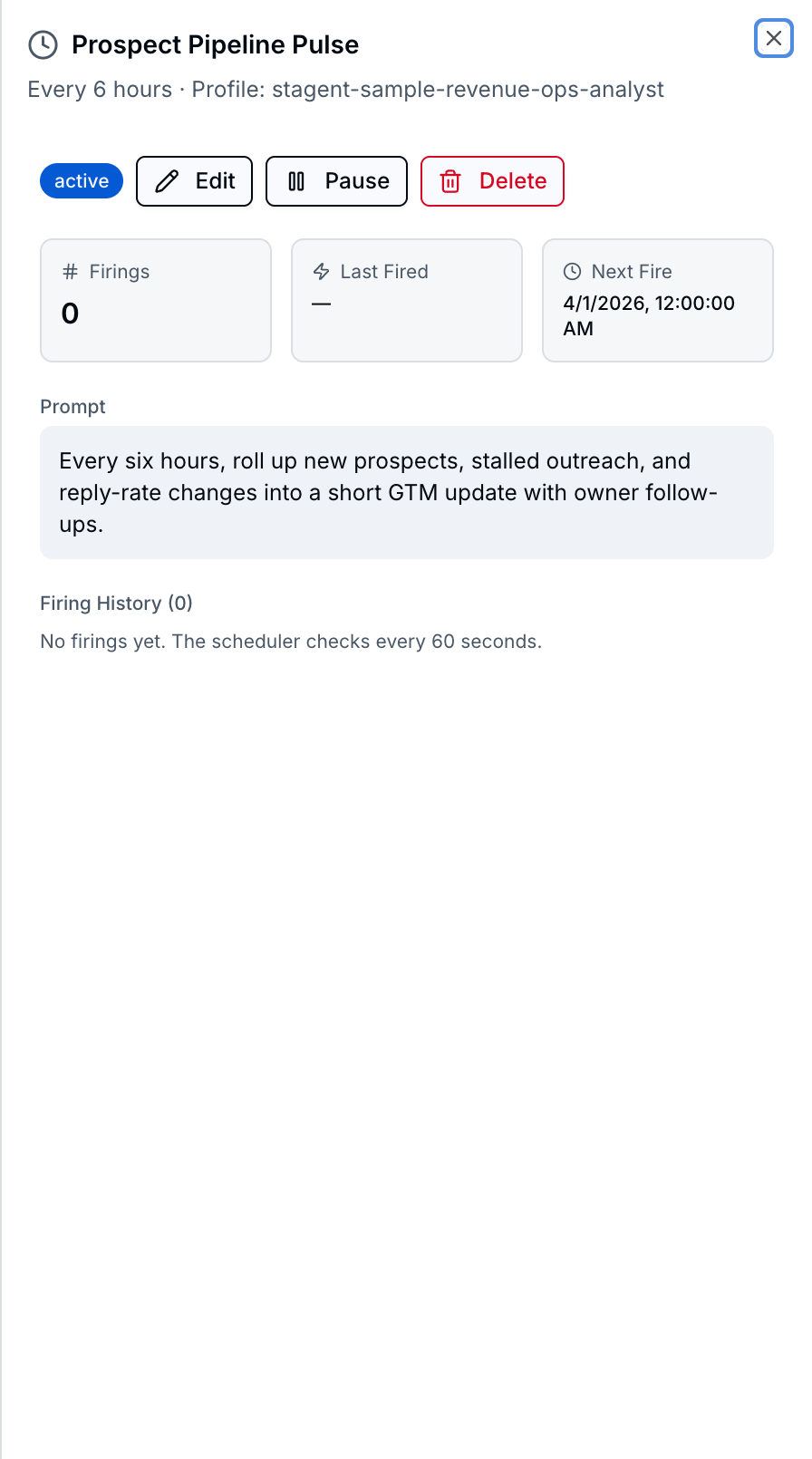
The detail view then exposes the exact prompt, next fire time, selected profile, and firing history. This keeps recurring automation observable in the same way that ad hoc tasks remain observable elsewhere in the product.
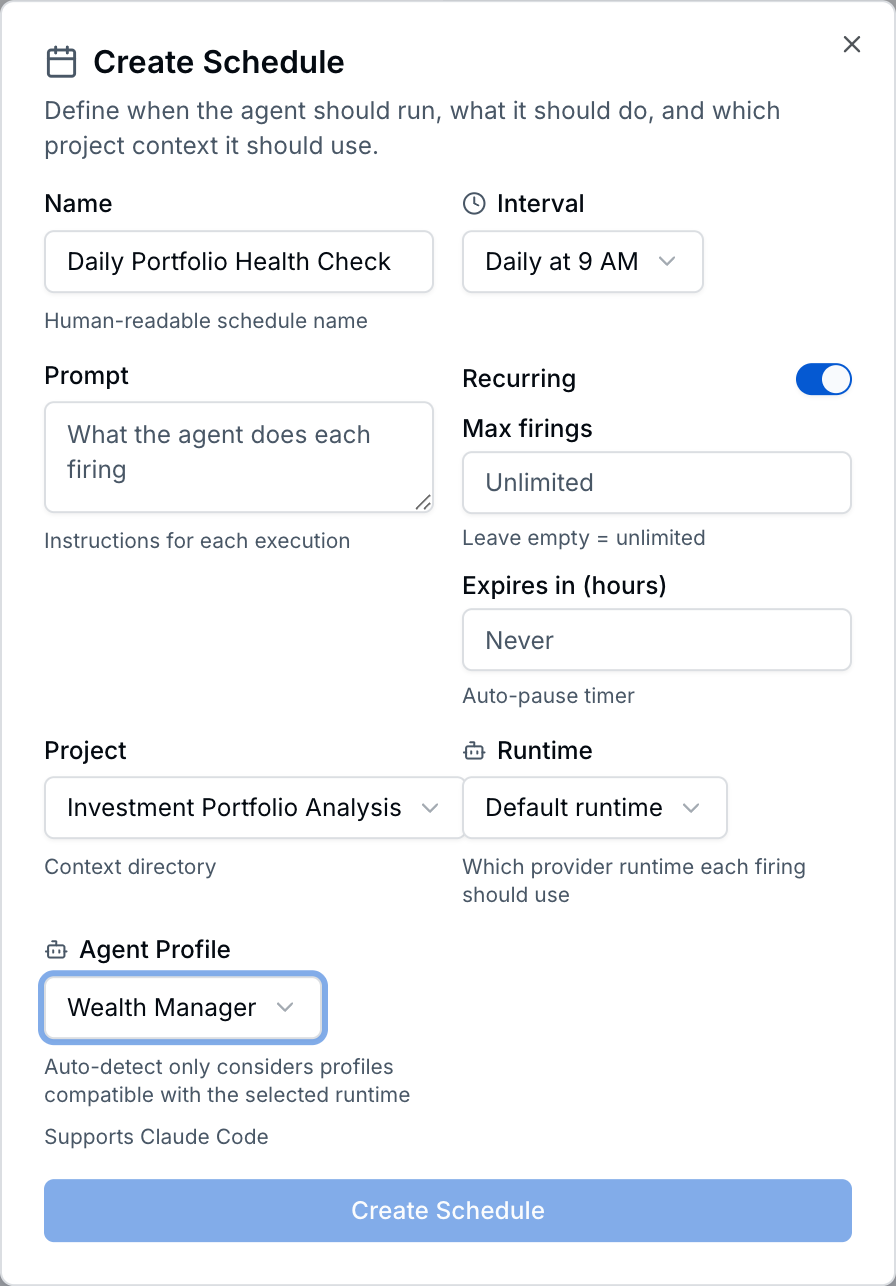
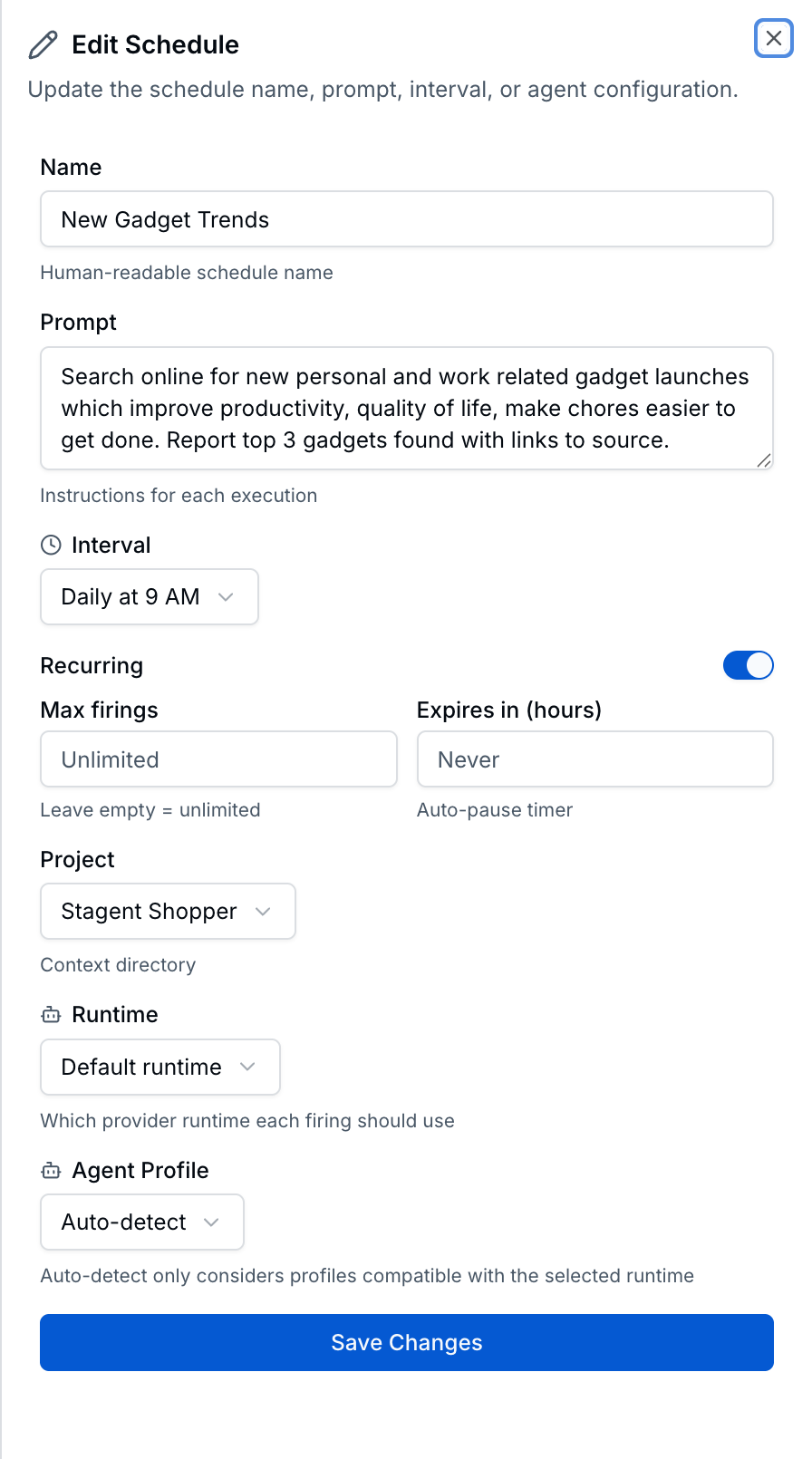
Editing an existing schedule exposes the same fields — name, prompt, interval, max firings, expiry, project, runtime, and agent profile — so operators can adjust timing or behavior without recreating the schedule from scratch.
Use Cases
Daily Business Briefing
Revenue Team · Creating a morning digest
A schedule runs every morning to summarize pipeline movement, stalled deals, and outreach changes before the standup. Operators still see the prompt, cadence, and next fire time in one place.
Compliance Reminders
Operations Team · One-shot follow-up workflows
You create a one-shot schedule to remind the team about missing tax forms or expiring vendor paperwork. The schedule handles the timing without requiring someone to remember it manually.
Market Watchlists
Individual User · Recurring portfolio monitoring
An active schedule checks overnight allocation drift every weekday morning and creates a new task when the threshold matters. It feels like automation, but it still stays inside the same governed workspace.
Related Features
- Profiles — Choose which specialist should run the schedule
- Workflows — Feed recurring automation into multi-step processes
- Task Execution — Review the work created by scheduled runs