Documents
The document workspace keeps project files, uploaded references, and extracted content in one place. It is designed for operators who need to verify exactly what context an agent is using before or after execution.
Key Concepts
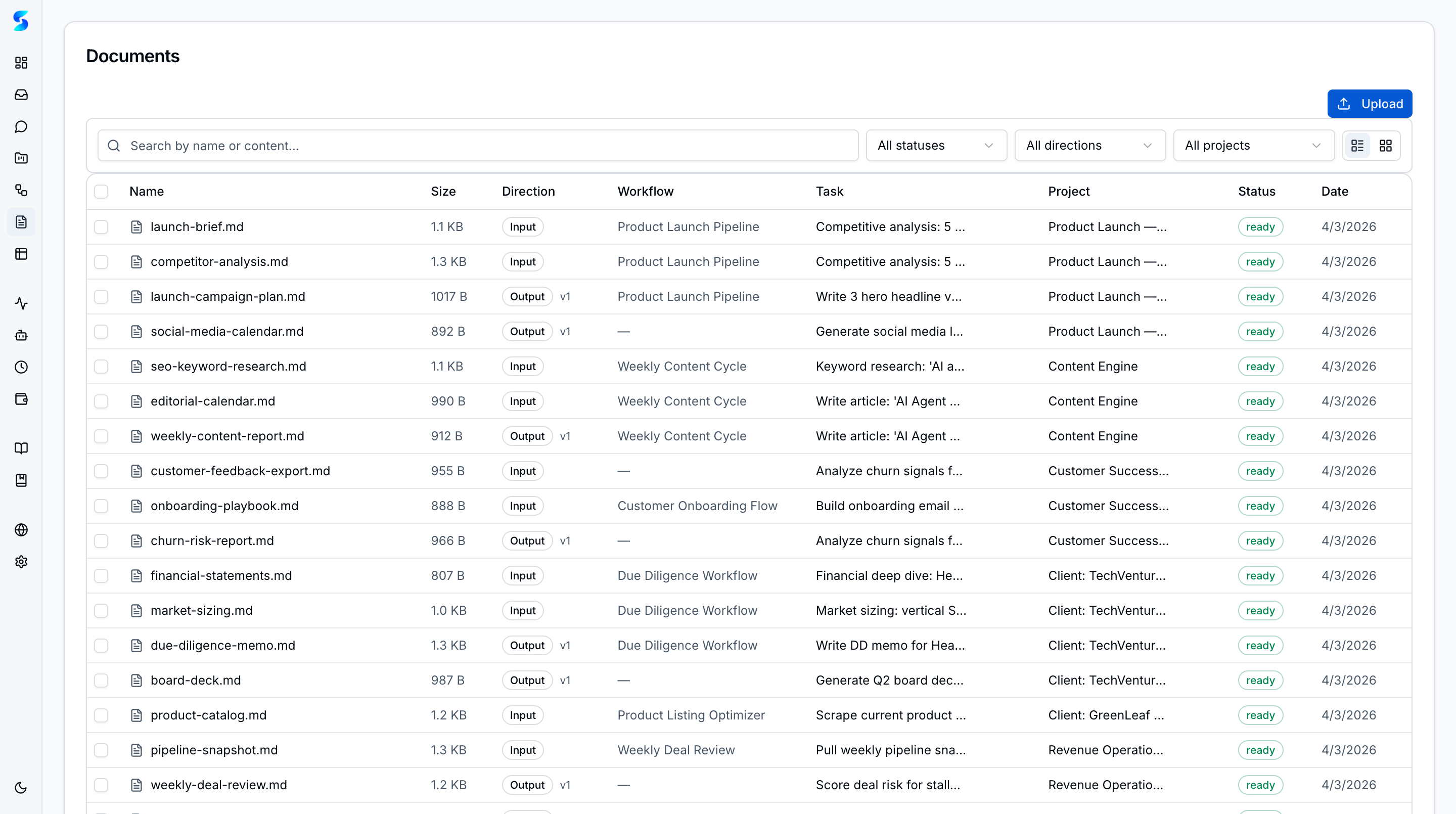
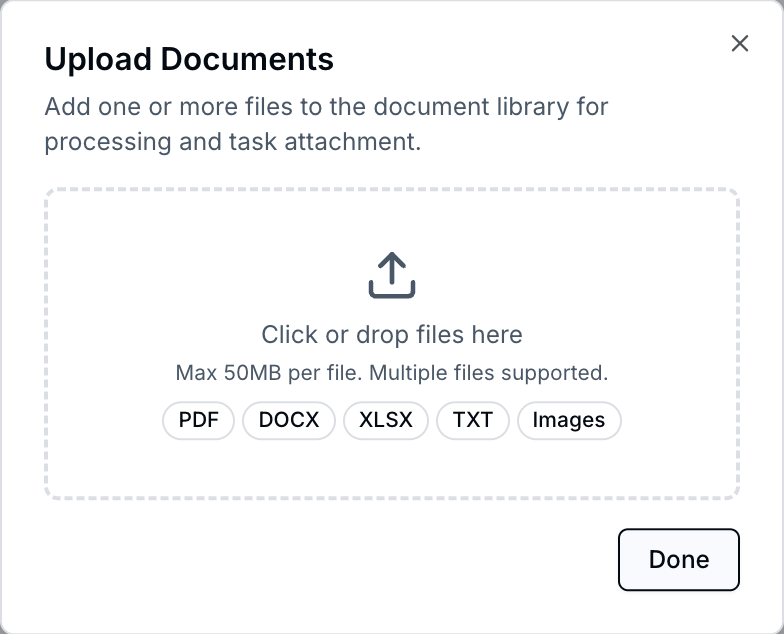
- Drag-and-Drop Upload — Upload multiple files at once with a progress indicator. Text files, PDFs, spreadsheets, Office documents, and images all enter the same library.
- Automatic Text Extraction — Stagent extracts searchable text from five file types automatically, making document content available to agents without manual preparation.
- Status Visibility — Extraction state is visible directly in the list so operators can spot failures before an agent depends on the file.
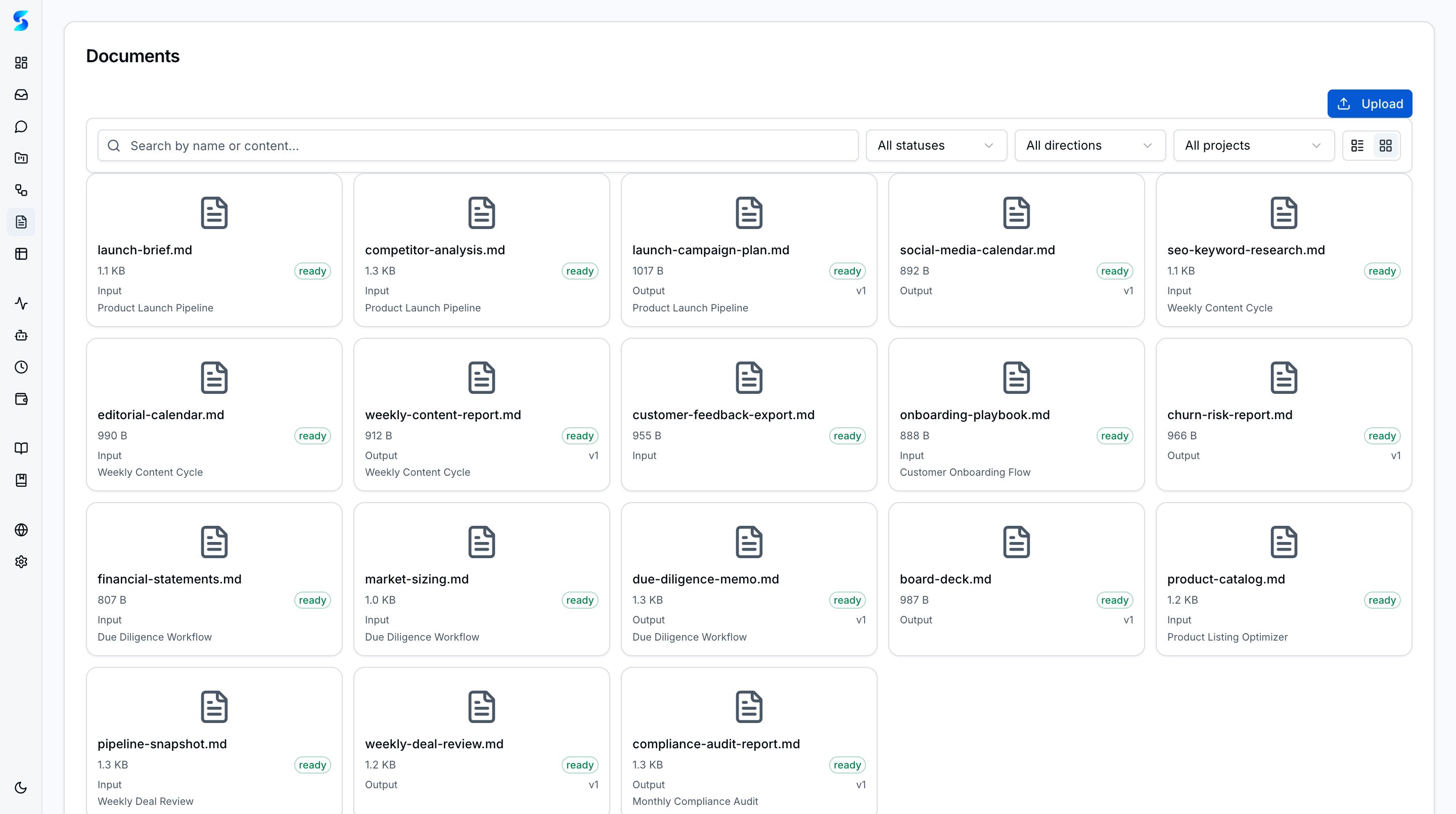
- List & Grid Views — Table and card layouts support both metadata-heavy browsing and faster visual scanning. View preference is remembered across sessions.
- Agent Context Injection — Linked documents are auto-injected into agent context at execution time, ensuring agents always have the right reference material.
- Output Document Generation — Agents can generate documents as deliverables. Agent-created files appear with a badge so operators can distinguish uploads from outputs.
Document Pipeline
- Upload — Add one or more files to the workspace through the upload modal.
- Associate — Keep the document unassigned or link it to the task and project that need the file.
- Extract — Stagent prepares machine-readable content for formats that support extraction.
- Review — Operators inspect the extracted text and metadata before trusting the file in an execution run.
- Reuse — The same document can continue supporting future tasks, workflows, and project reviews.
What the Detail View Adds
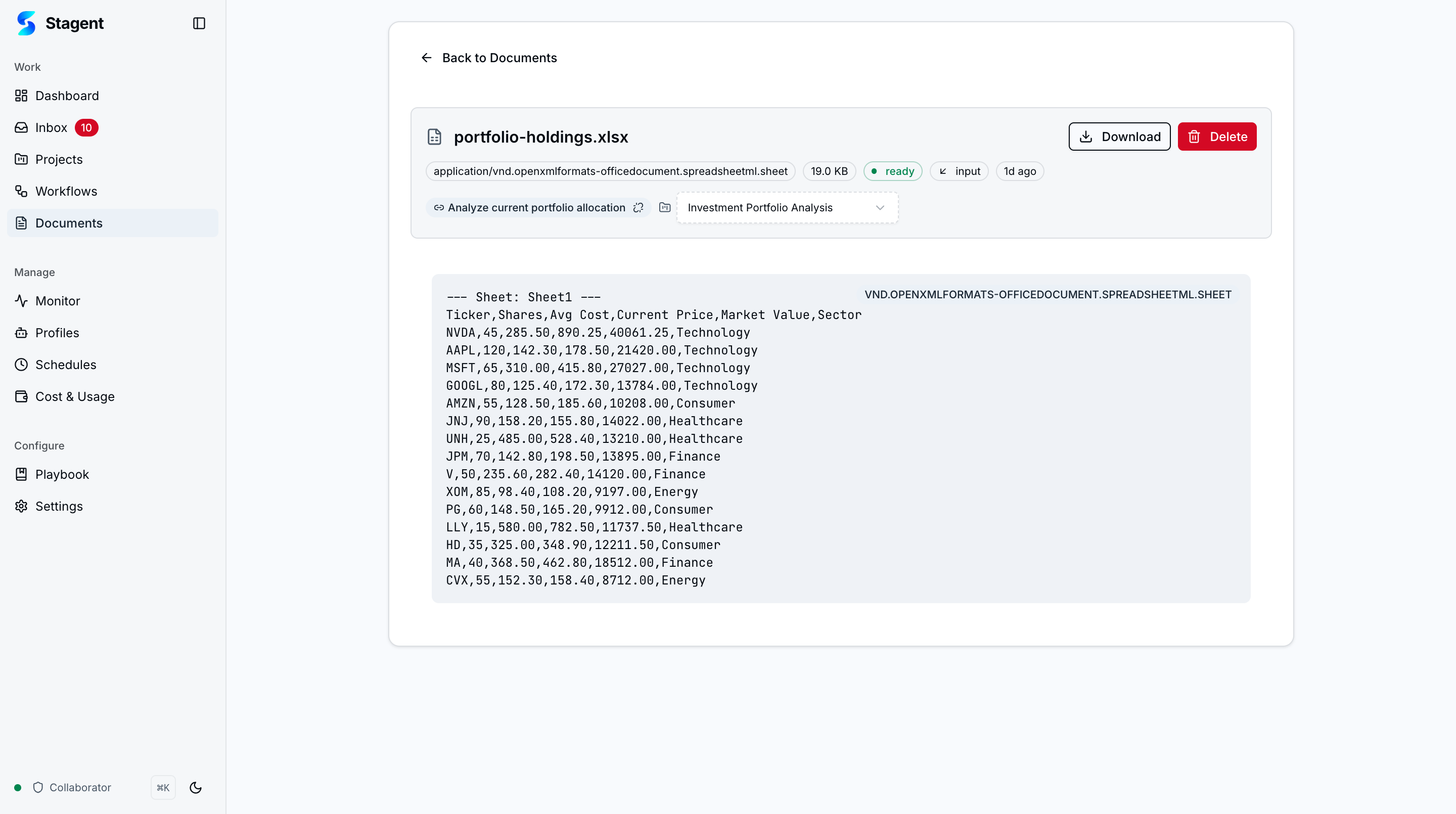
- Extracted Text Panel — Review the machine-readable content that downstream agent steps will consume.
- Metadata Summary — File type, size, processing status, and origin stay visible without leaving the record.
- Task & Project Links — Navigate directly from a document to the operational work it supports.
- Preview Toggle — Expand the preview area when you need to inspect more than the extracted text alone.
Use Cases
Onboarding Knowledge Base
Product Team · Grounding agents in company-specific knowledge
You upload launch briefs, competitor audits, and API notes to one project. When workflows run, the supporting files are already visible, linked, and reviewable inside the same workspace.
Contract Analysis
Knowledge Worker · Comparing terms across multiple vendor agreements
You ingest a mix of PDFs and DOCX files, verify extraction results on each document detail page, and then run a workflow that compares terms without guessing what content was actually available to the agent.
Personal Document Organization
Non-Technical User · Bringing order to a pile of paperwork
You upload receipts, statements, and forms into a single library, then keep them linked to the task or project that depends on them. The document view becomes your filing system and verification surface at the same time.
Related Features
- Agent Integration — How agents consume document context
- Projects — Documents linked to active initiatives
- Settings — Upload and storage configuration