Home & Dashboard
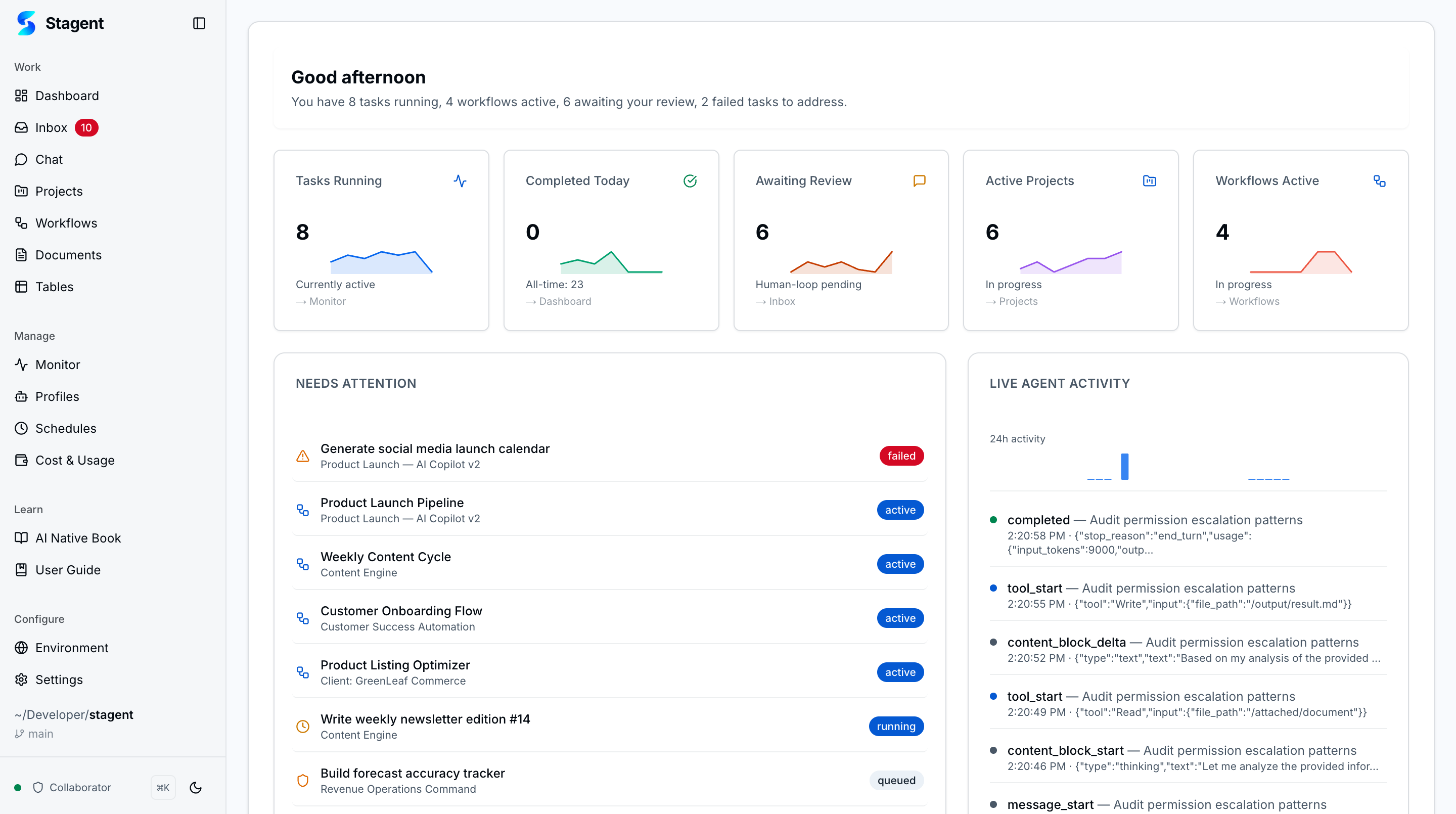
Stagent uses two complementary workspace views. The home screen is the operational briefing for the entire workspace, while the dashboard is the active execution board for tasks moving through the system.
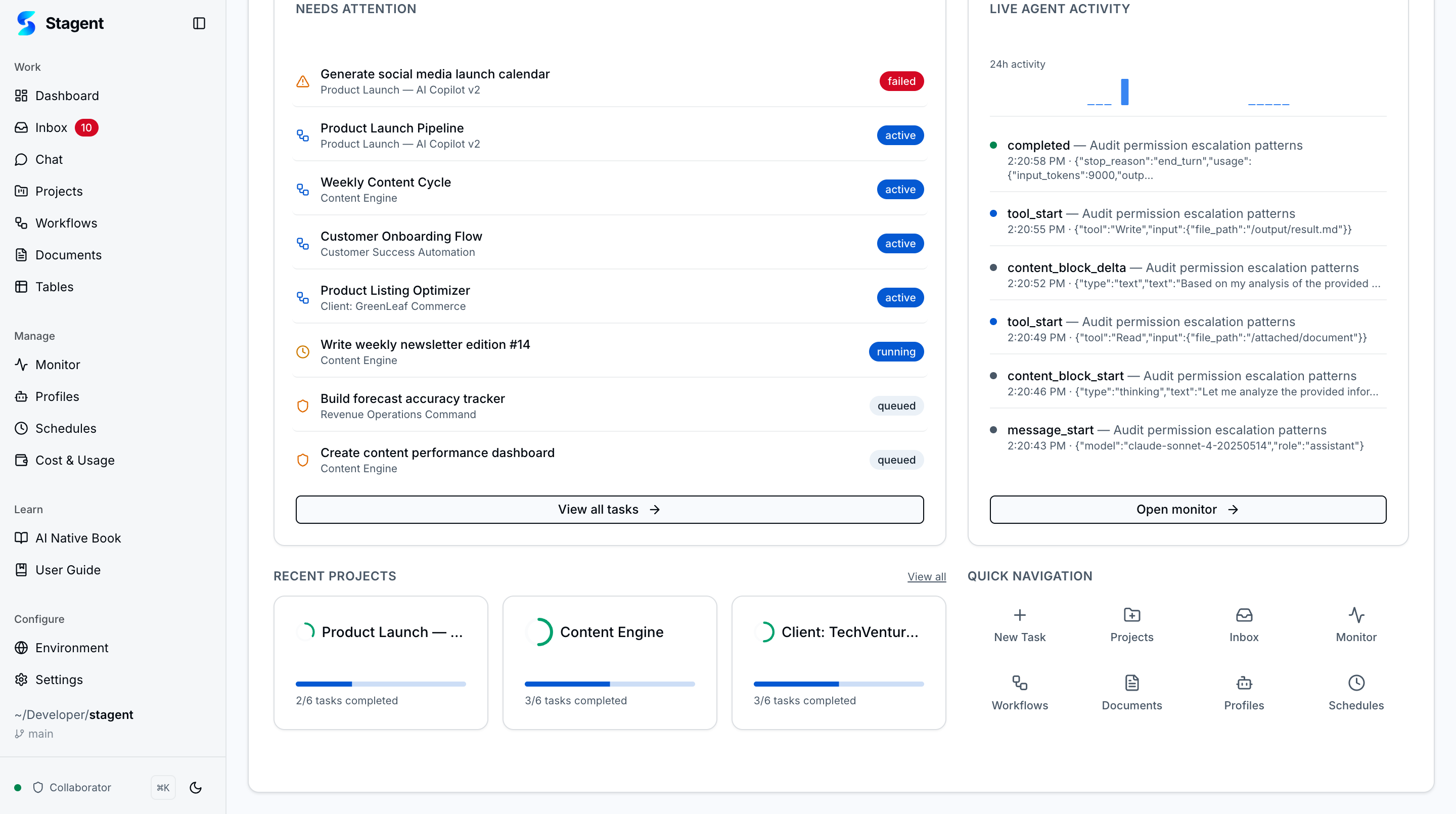
Scrolling below the briefing reveals quick-action shortcuts and recent project cards. Each card shows completion progress so you can spot stalled initiatives without drilling into individual projects.
Key Concepts
- Workspace Briefing — Five stat cards give an instant pulse: tasks running, tasks completed today, tasks awaiting review, active projects, and active workflows. Embedded micro-visualizations — sparklines for 7-day trends, mini bar charts for project health, and donut rings for completion progress — make the data scannable at a glance.
- Needs Attention Queue — Priority work that deserves immediate operator input is pulled into a dedicated list instead of being buried in a general board.
- Pending Review Badges — Badge counts for tool approvals, agent questions, and completion reviews surface directly on the home screen so you never miss gating decisions.
- Live Agent Activity — Running agents with elapsed time are visible from home — click any entry to jump directly to the monitoring view.
- Execution Dashboard — The dashboard groups tasks by state across five columns (Planned, Queued, Running, Completed, Failed) so you can manage work across multiple projects from one operational surface.
- Drag-and-Drop Reordering — Drag task cards between columns or within a column to reorder priorities; changes persist to the database in real time.
- Heartbeat Badges — Tasks created by heartbeat schedules display a visual badge so you can distinguish proactive automation from manually created work.
- Trust Tier Indicator — The sidebar footer displays the current trust tier (Supervised, Semi-Autonomous, or Autonomous) so the operating posture is always visible.
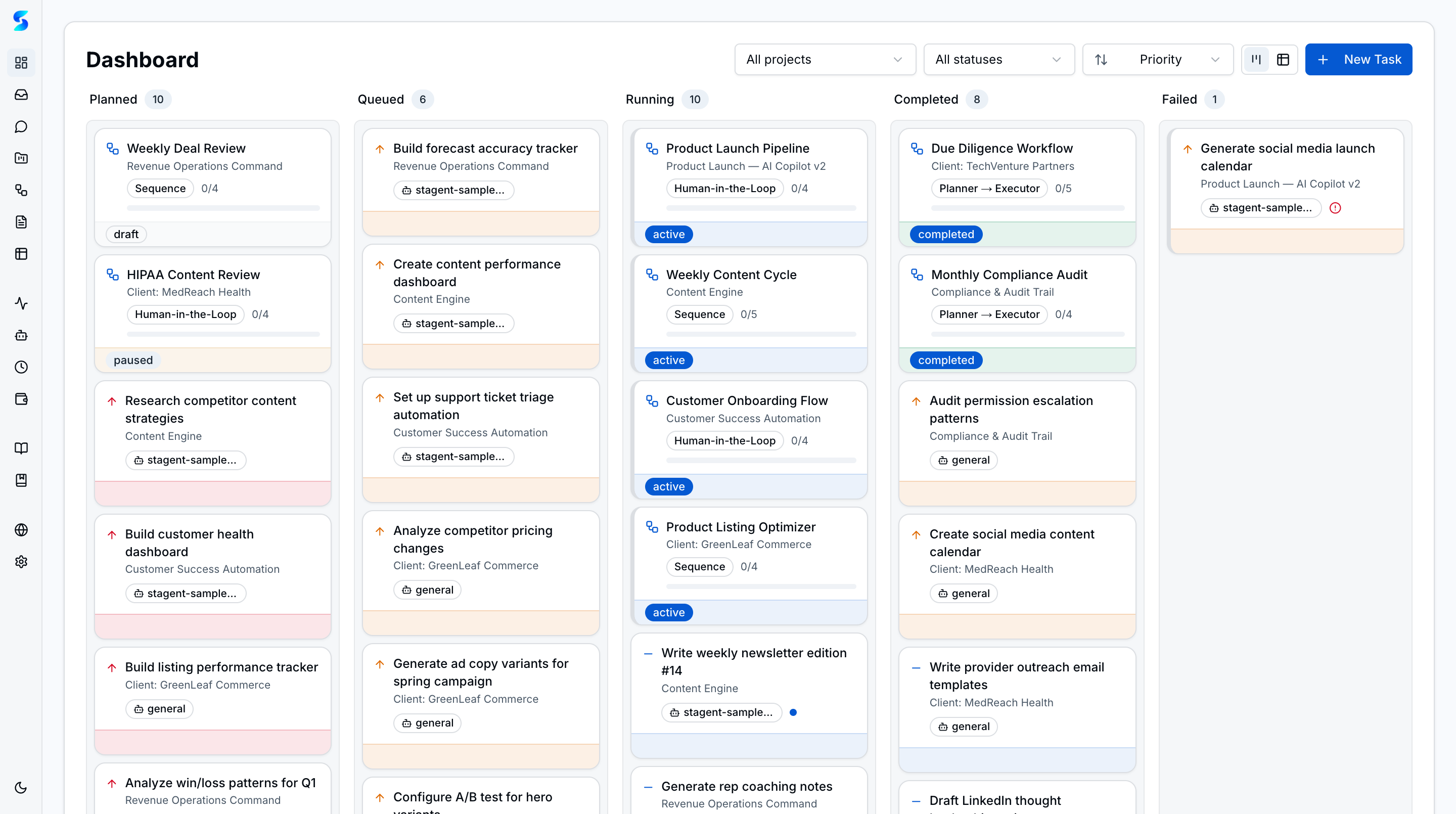
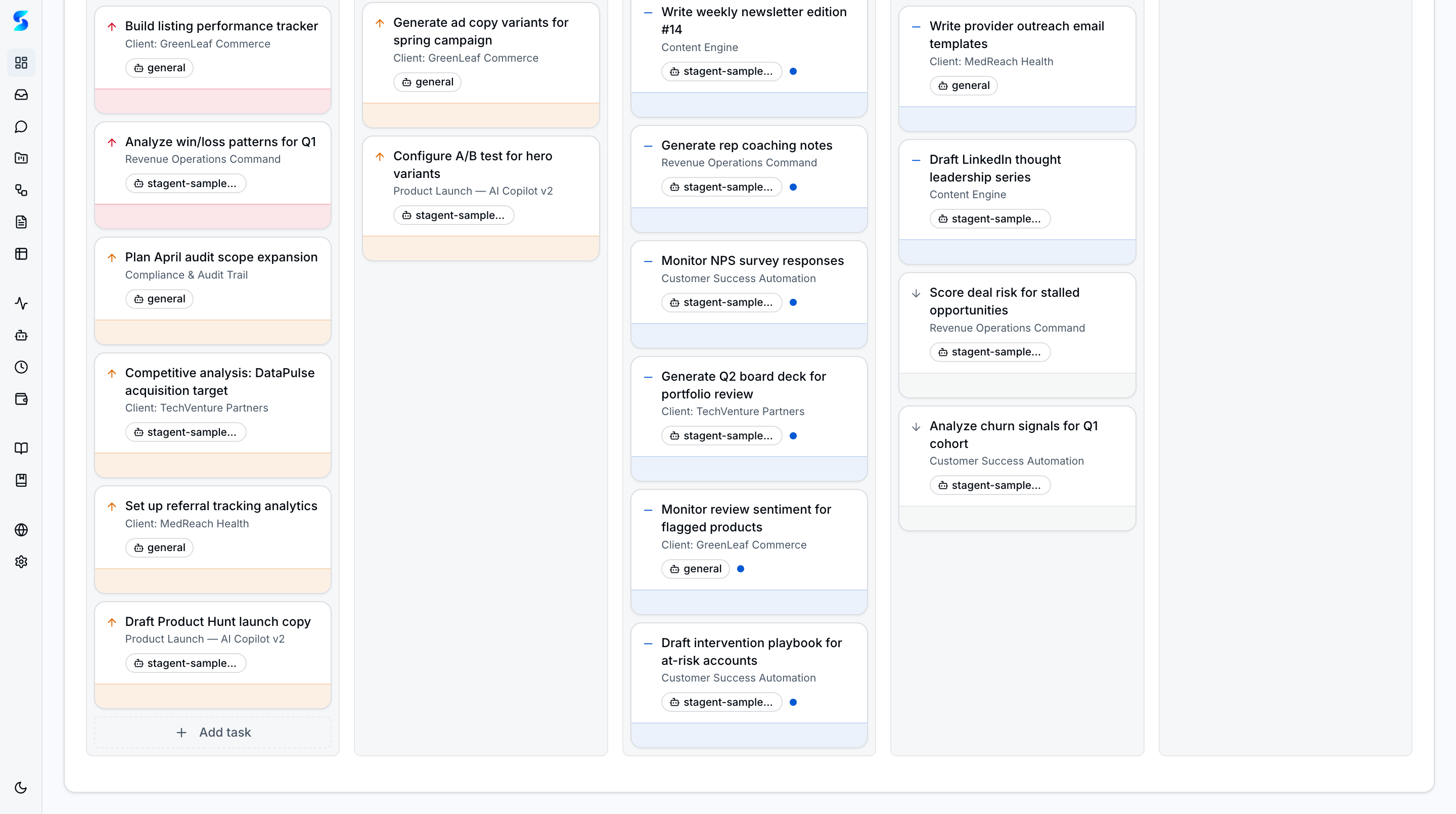
Applying a project filter narrows the board to a single initiative, making it easy to focus on one stream of work without the noise of unrelated tasks.
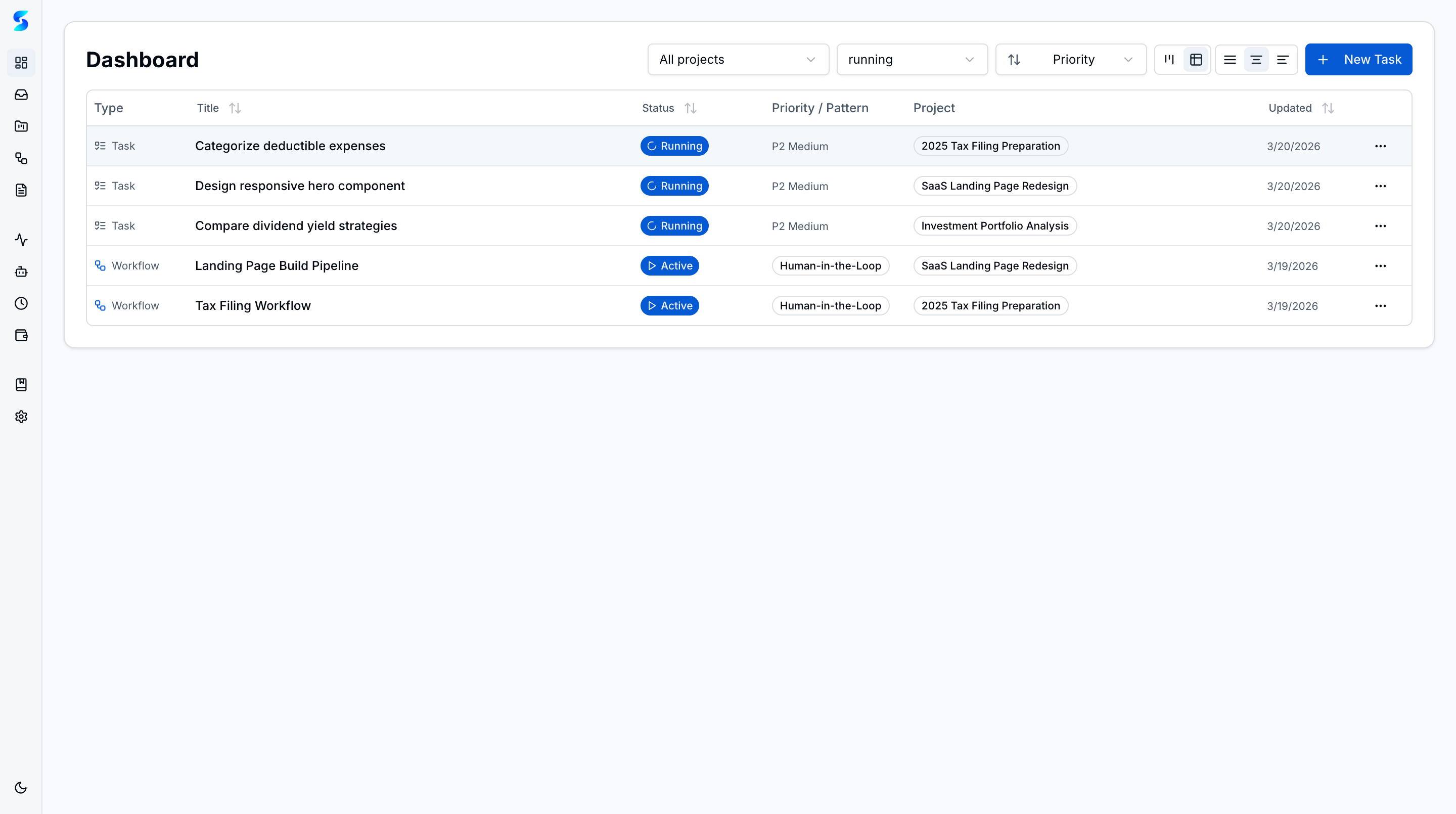
Sort controls reorder tasks within each column — switching to “newest first” pushes recently created work to the top so you can review the latest additions immediately.
How It Works
The home screen rolls up workspace-wide signals into a concise daily briefing. From there, operators can jump to the dashboard, inbox, monitor, or individual project records depending on what needs action.
The dashboard focuses on execution flow. Status lanes expose planned, queued, running, completed, and failed work, while project and status filters make it easy to isolate one initiative or review everything at once.
Use Cases
Morning Standup at a Glance
Product Team · Team lead opening Stagent at 9 AM
Your overnight agents processed pull requests, updated documents, and queued two approvals. The home screen immediately shows what is running, what needs review, and which projects are active before anyone opens Slack.
Personal Project Portfolio
Non-Technical User · Managing three personal projects simultaneously
You are tracking a tax prep workflow, a portfolio review, and a SaaS marketing push. The home workspace gives a single overview, then the dashboard lets you work the task queue without context switching between separate tools.
Sprint Health Check
Developer · Checking task throughput mid-sprint
You notice the queued column is growing while completed work stalls. A quick drill into the dashboard identifies the exact tasks that are blocked, and the task detail view makes it easy to cancel, requeue, or inspect one item without losing the broader board context.
Playbook
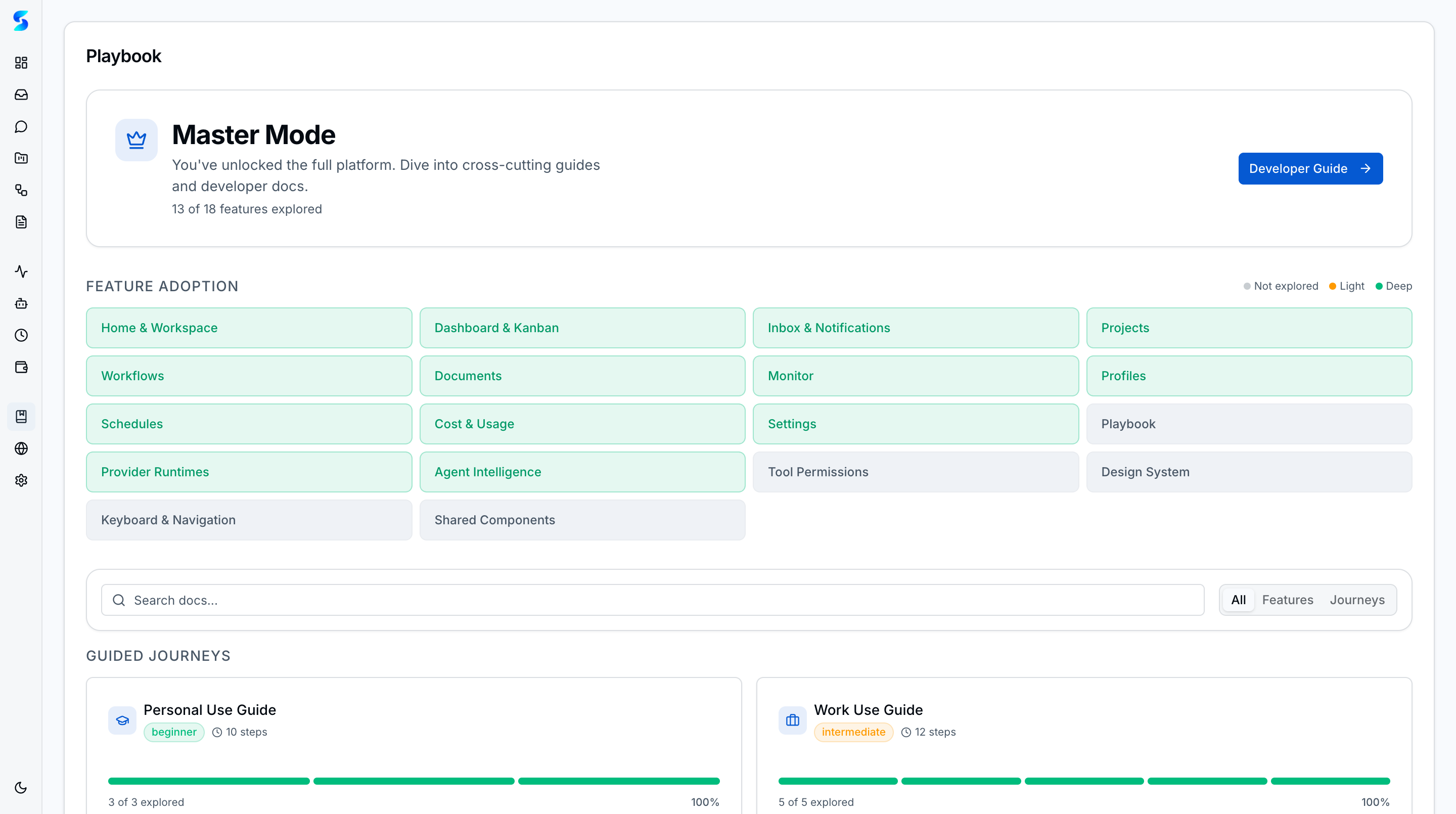
The Playbook surface provides a guided adoption experience with Master Mode, a feature adoption grid tracking progress across all product surfaces, and curated journey guides for different user personas.
Related Features
- Task Execution — Task detail, lifecycle, and creation flows
- Projects — Project-scoped execution and summaries
- Monitoring — Deep log-level visibility into active runs